


Before you start
Welcome to NavaX FX. This guide uses screenshots from the Windows desktop app, version 0.6.82, to walk you through connecting an existing MT4 or MT5 terminal, selecting the gold symbol, installing the EA, authorizing the account, and checking its operating status. Button positions may differ slightly in later versions.
Complete your first setup on a demo account. The account numbers, brokers, folders, and balances in the screenshots are examples—not values to copy or promises of returns. Different screenshots show different MT4/MT5 demo accounts; they are not a continuous trading history for one account. Where an English screenshot is unavailable, a Chinese screenshot illustrates the same step, with the relevant controls explained below.
Have the following ready:
- NavaX FX installed and signed in to the NavaX account you intend to use.
- Your broker's MT4 or MT5 installed on this PC, with your own trading account able to connect to the correct broker server.
- The exact gold-versus-US-dollar symbol offered by that account, such as XAUUSD or XAUUSD.s.
- A working network connection. Keep NavaX FX and the corresponding trading terminal running during setup and operation.
Understand the four separate stages: adding a terminal registers it with the manager; an online EA has established a connection; EA authorization permits the signed-in NavaX account to send instructions; execution also depends on the manager's trading switch and the terminal's algorithmic trading permission. One status does not replace the others.
Step 1: Add your existing MT4 / MT5 terminal
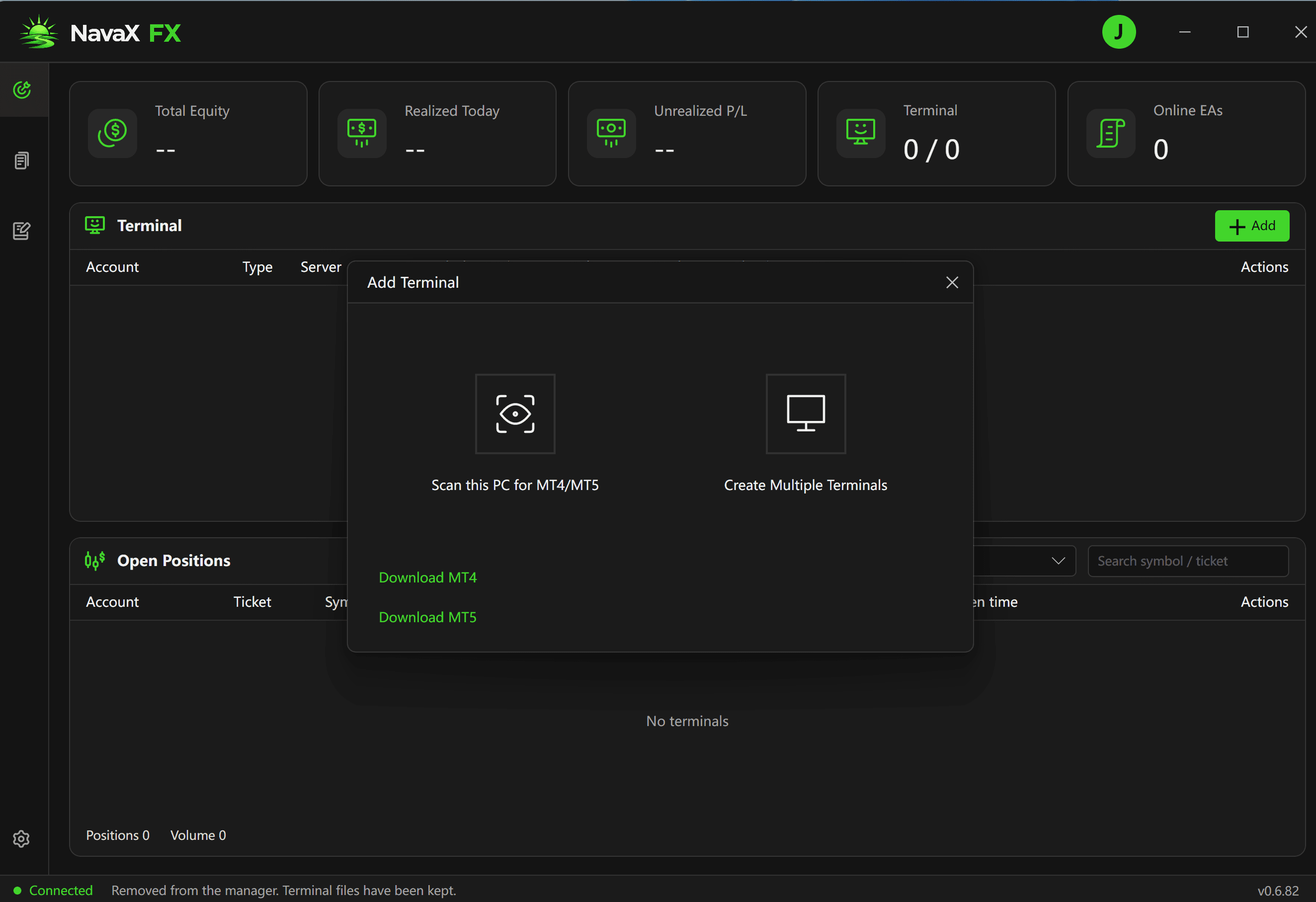
- Find the Terminal section on the dashboard and click + Add.
- In Add Terminal, select Scan this PC for MT4/MT5.
- If a trading terminal is not installed yet, use the Download MT4 or Download MT5 entry, finish installation and account login, then return to scanning.
Create Multiple Terminals is an alternative workflow. This guide focuses on connecting an existing installation; you do not need to use both options for your first setup.
Step 2: Scan, select, and verify the terminal
- Select the terminal scope in the scanning wizard. Leave it at All terminals if you are unsure.
- Click Start scan and wait for completion. After installing another terminal, use Rescan to update the results.
- Check the terminal name, MT4/MT5 type, installation path, and data folder to identify the correct instance.
The scan checks local directory mappings, running processes, common folders, and installation records. Running only means the terminal process is running; it does not mean the EA is connected or ready to trade. Account and server details come from valid EA reports. Missing details can appear as “--” and do not, by themselves, prove installation has failed.
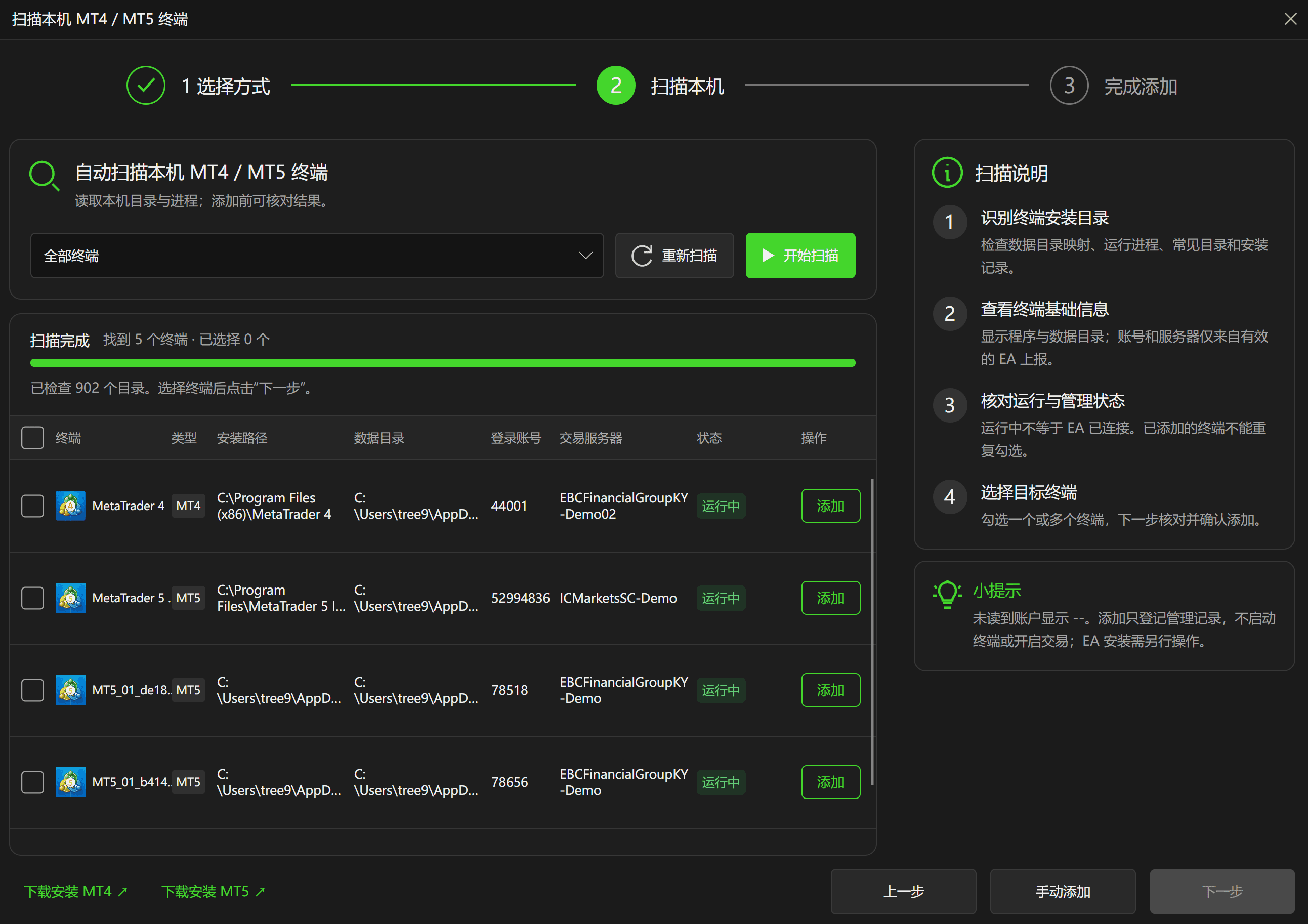
- Tick the checkbox beside the target terminal, verify the selected count, and click Next. Selecting one terminal for your first setup makes verification easier. Terminals already in the manager cannot be selected again.
- If the target is missing, verify that it is installed and opens correctly, then rescan. If needed, choose Manual add and follow the on-screen prompts for the actual terminal path.
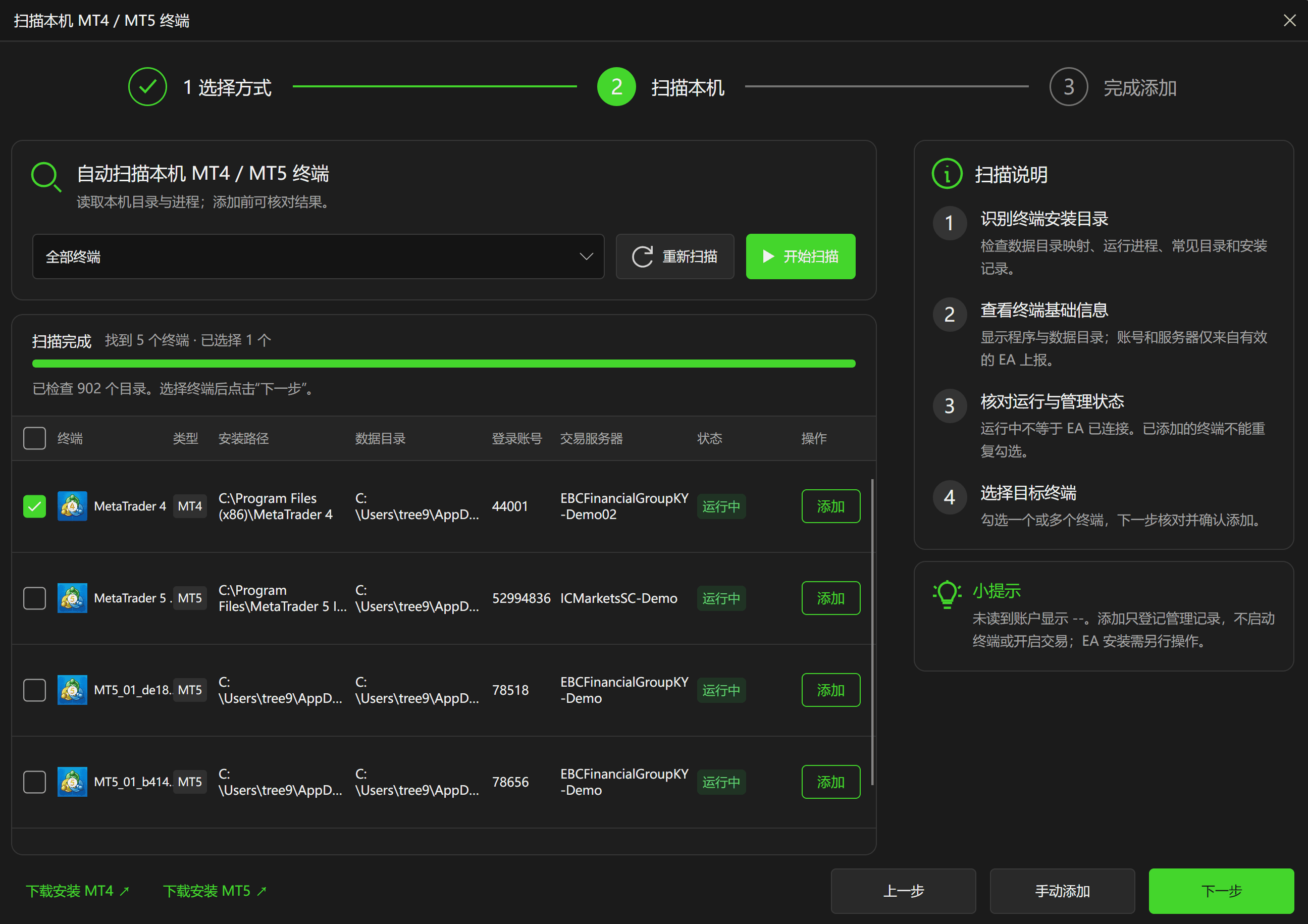
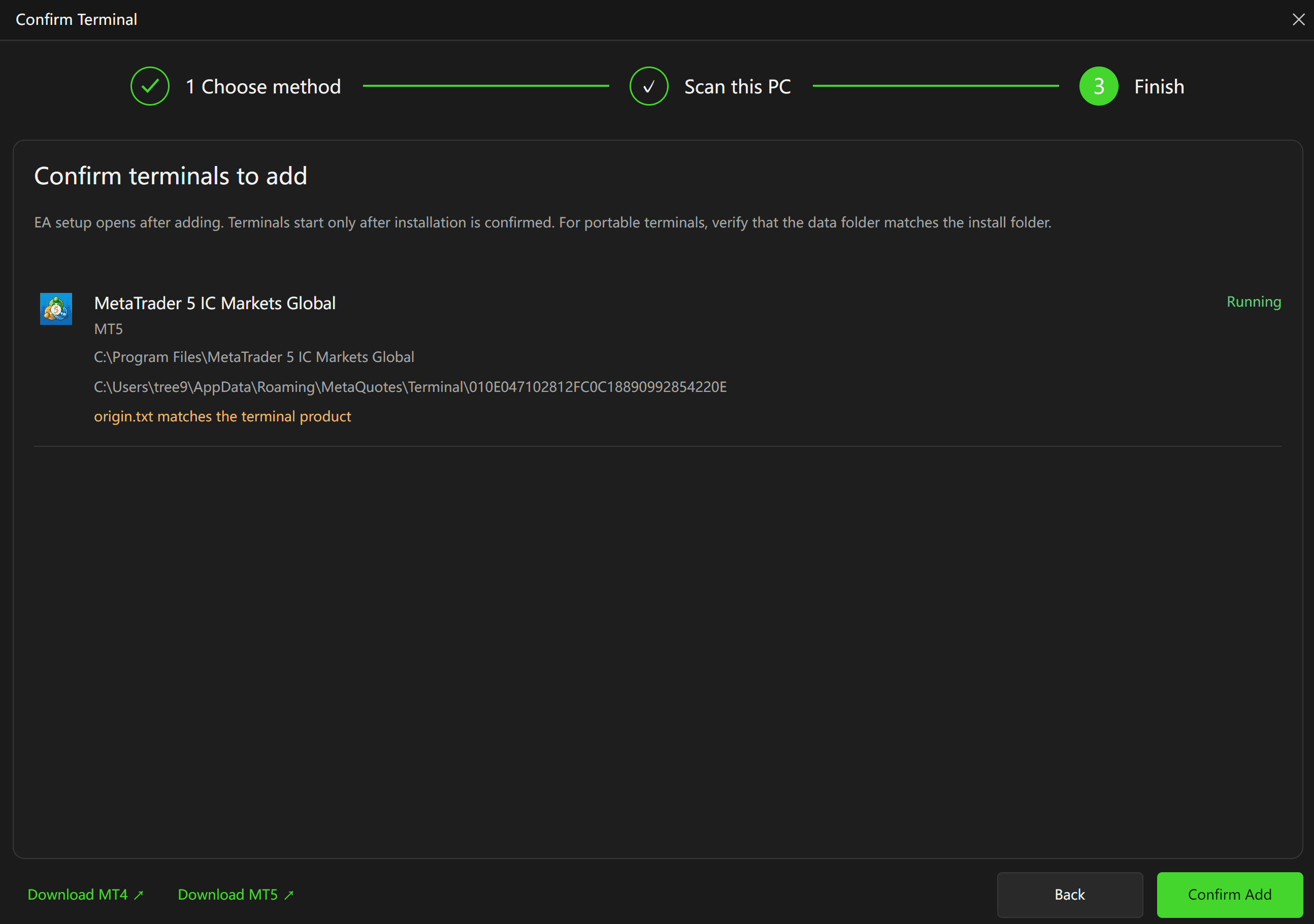
On Confirm Terminal, review the platform, installation folder, and data folder again. A standard installation may use a separate data folder; for a portable installation, verify whether the actual data folder matches the installation folder. Do not assign a folder that belongs to another terminal instance.
Click Confirm Add when the details are correct. EA setup opens after adding. Registering a terminal does not enable trading, and the wizard indicates that it will not launch the terminal or change trading settings before installation is confirmed.
Step 3: Select the correct gold symbol
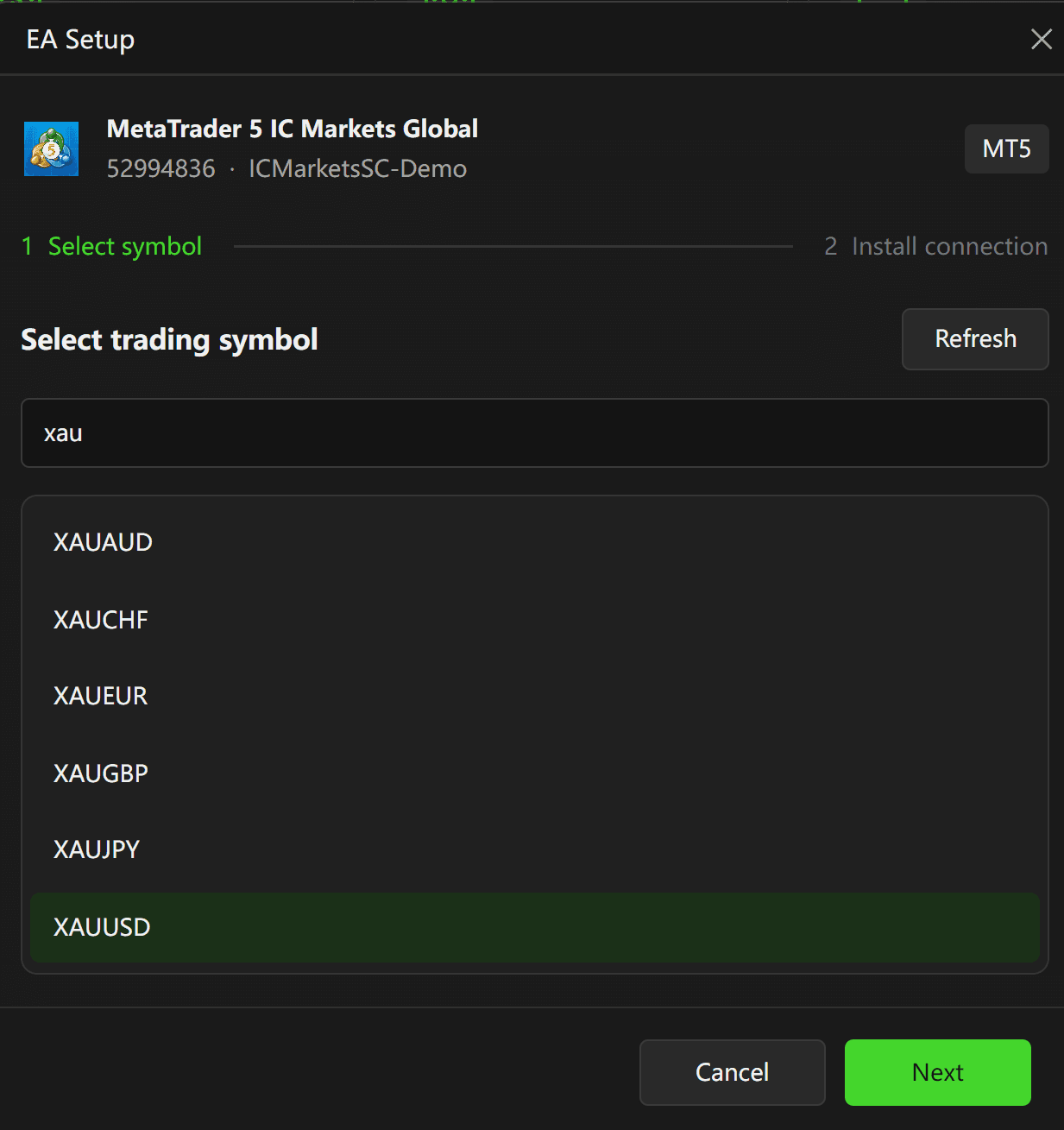
- In EA Setup, check the account and server shown at the top of Select symbol.
- Enter XAU in the search field and locate your broker's gold-versus-US-dollar instrument.
- Select the instrument and click Next. Use Refresh if the list has not updated.
Use the complete symbol name offered by your account. The MT5 example uses XAUUSD; the MT4 example uses XAUUSD.s. Do not remove a broker's suffix. XAGUSD is silver versus the US dollar, while XAUEUR and XAUAUD quote gold in other currencies; do not select them merely because their names look similar.
Step 4: Wait for installation and connection verification
Setup shows four stages: Prepare connection component, Deploy EA and local settings, Prepare automatic loading, and Verify account connection. The illustrated bridge file is NavaXTradingBridge.ex4 for MT4 and NavaXTradingBridge.ex5 for MT5.
After the first three stages complete, the app still needs confirmation from the EA and account connection. Progress near 75%, or Waiting for EA connection, is not a completed setup—and is not necessarily a failure. Keep the correct terminal running, confirm its account login and broker connection, and watch for a status update.
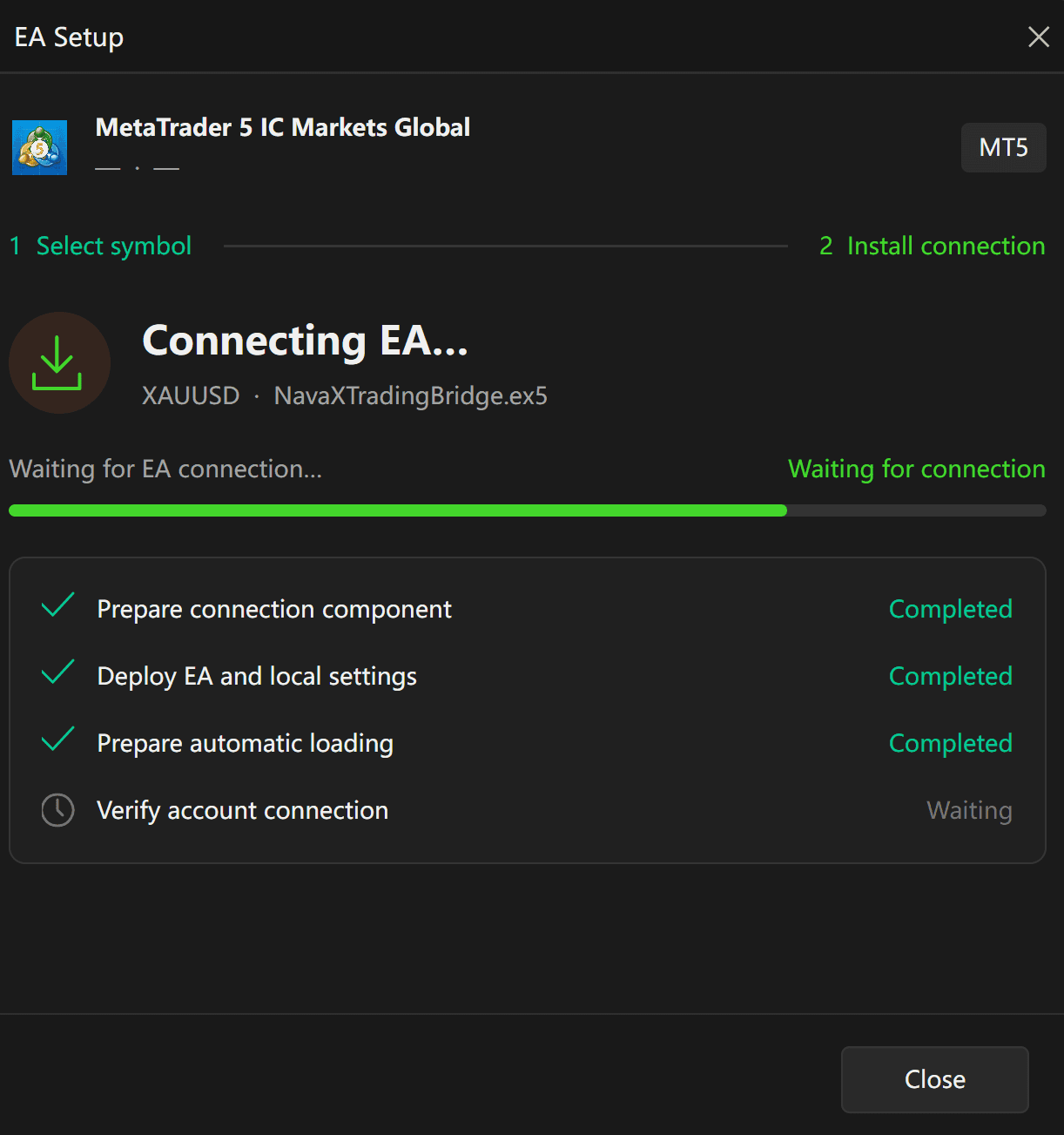
Some screens offer an option to continue in the background. Returning to the dashboard is not proof that connection has succeeded. If the status does not progress, follow the troubleshooting section instead of repeatedly adding the same terminal.
Step 5: Review and confirm EA authorization
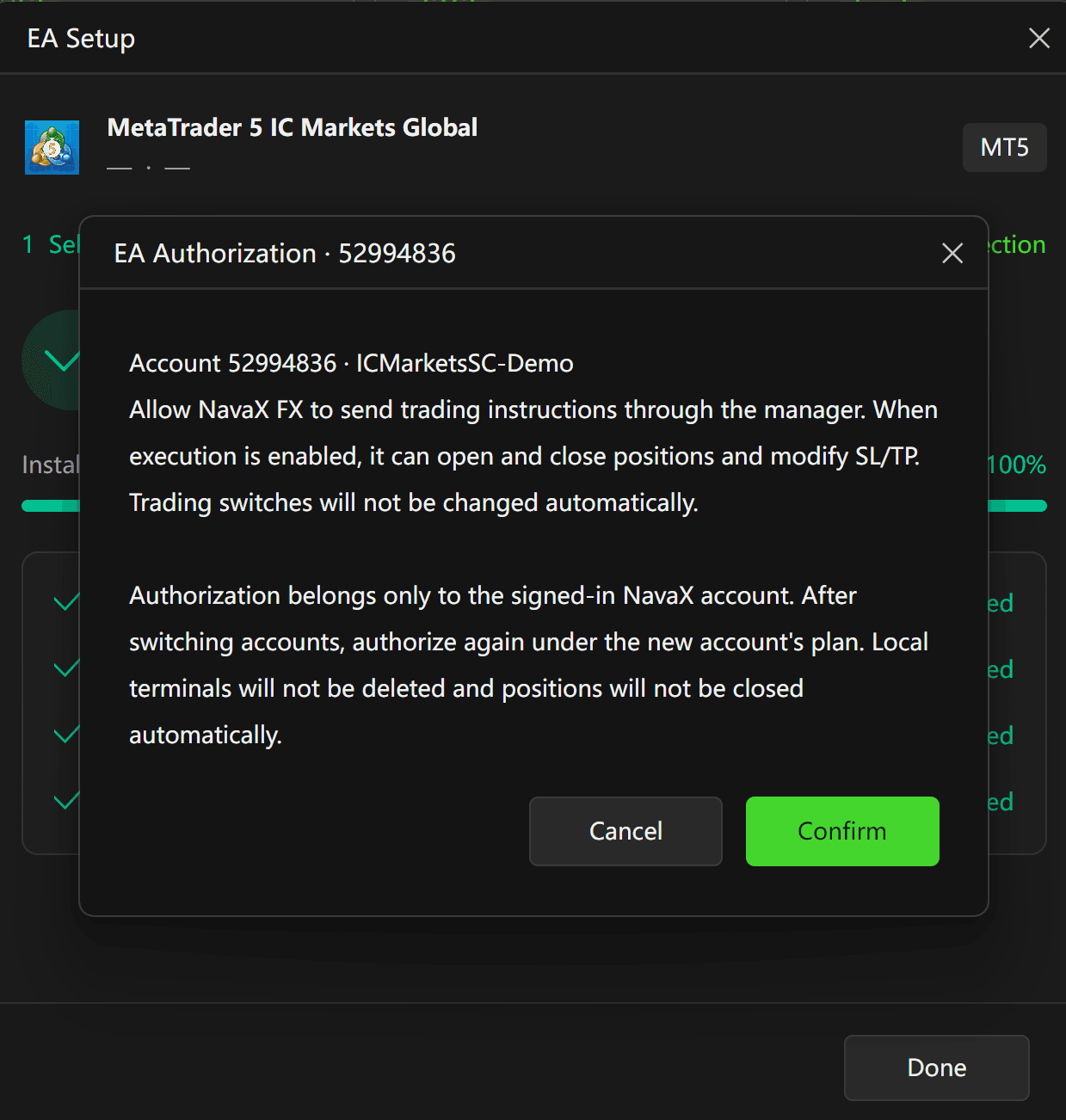
When EA Authorization appears, first verify its account number and server. Read the authorization details before confirming.
Authorization allows NavaX FX to send trading instructions through the manager. When execution is enabled, those instructions can open and close positions and modify stop loss and take profit. Confirming authorization does not automatically change the trading switches. Check execution status and algorithmic trading permissions separately.
- Click Confirm only when the account is correct and you intend to grant the described permission. Otherwise, click Cancel and review the setup.
- Authorization belongs to the currently signed-in NavaX account. After switching NavaX accounts, authorize again under the new account's plan.
- Switching accounts does not automatically delete local terminals or close positions. Existing positions still need to be checked and managed separately.
Step 6: Check the trading switches and enable algorithmic trading
On returning to the dashboard, the EA may be online while the operating status shows Warning. In the illustrated Chinese example, the bottom message says that authorization is complete but terminal algorithmic trading is not enabled. This is a separate requirement from the EA connection.
- Confirm that you are using the intended demo account and review its trading settings.
- Open the … menu on that terminal's row.
- When you intend to allow strategy execution, select Enable algorithmic trading. Once execution permissions are enabled, strategy instructions may trigger trades; verify the account and settings first.
- Check the manager's trading switch on the NavaX FX account row as well. The manager switch and terminal algorithmic trading permission must be checked separately.
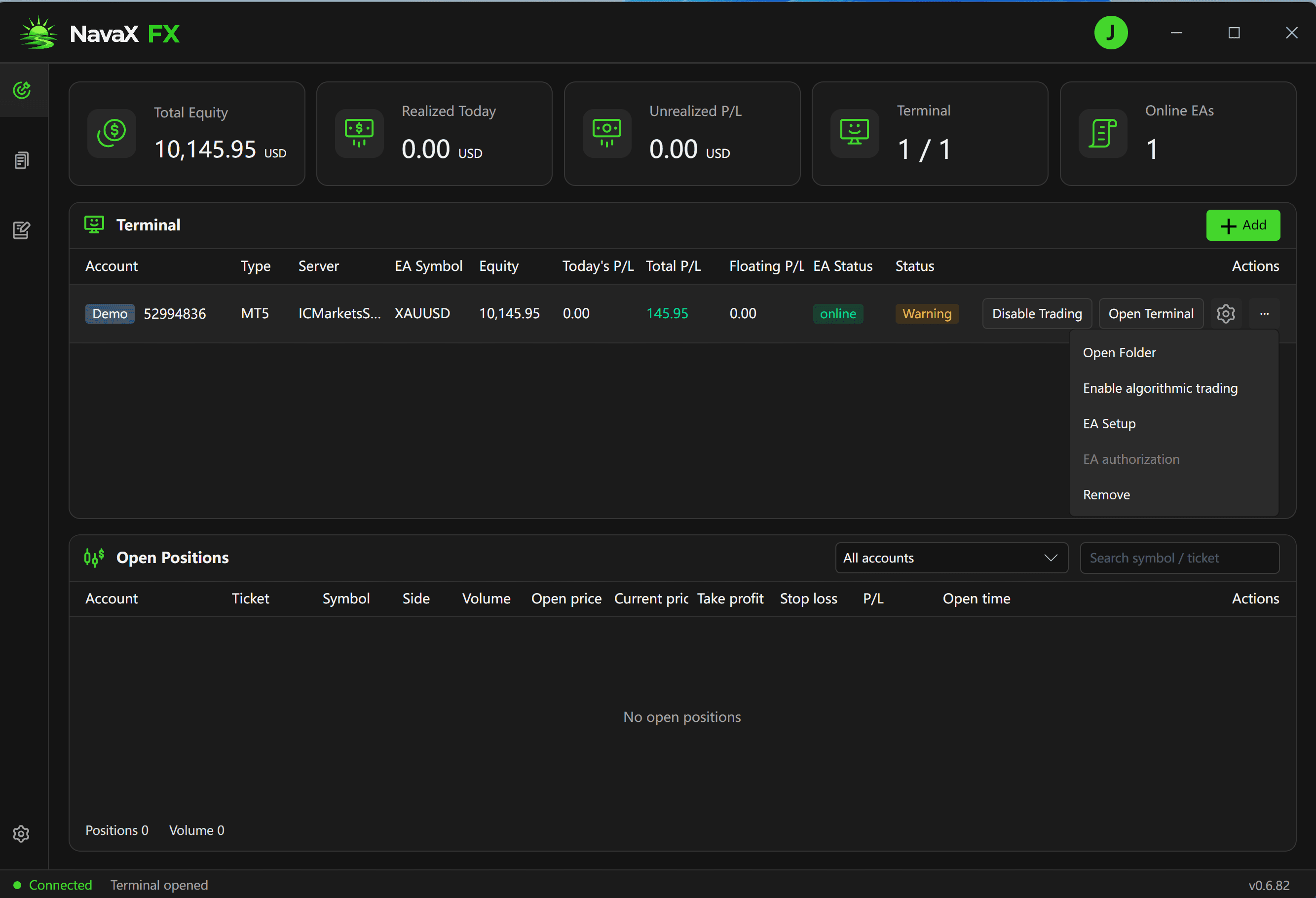
Disable Trading is an action button, not a status label. The screenshot shows this button while terminal algorithmic trading is still disabled. Do not use a single button to decide whether the whole execution chain is ready.
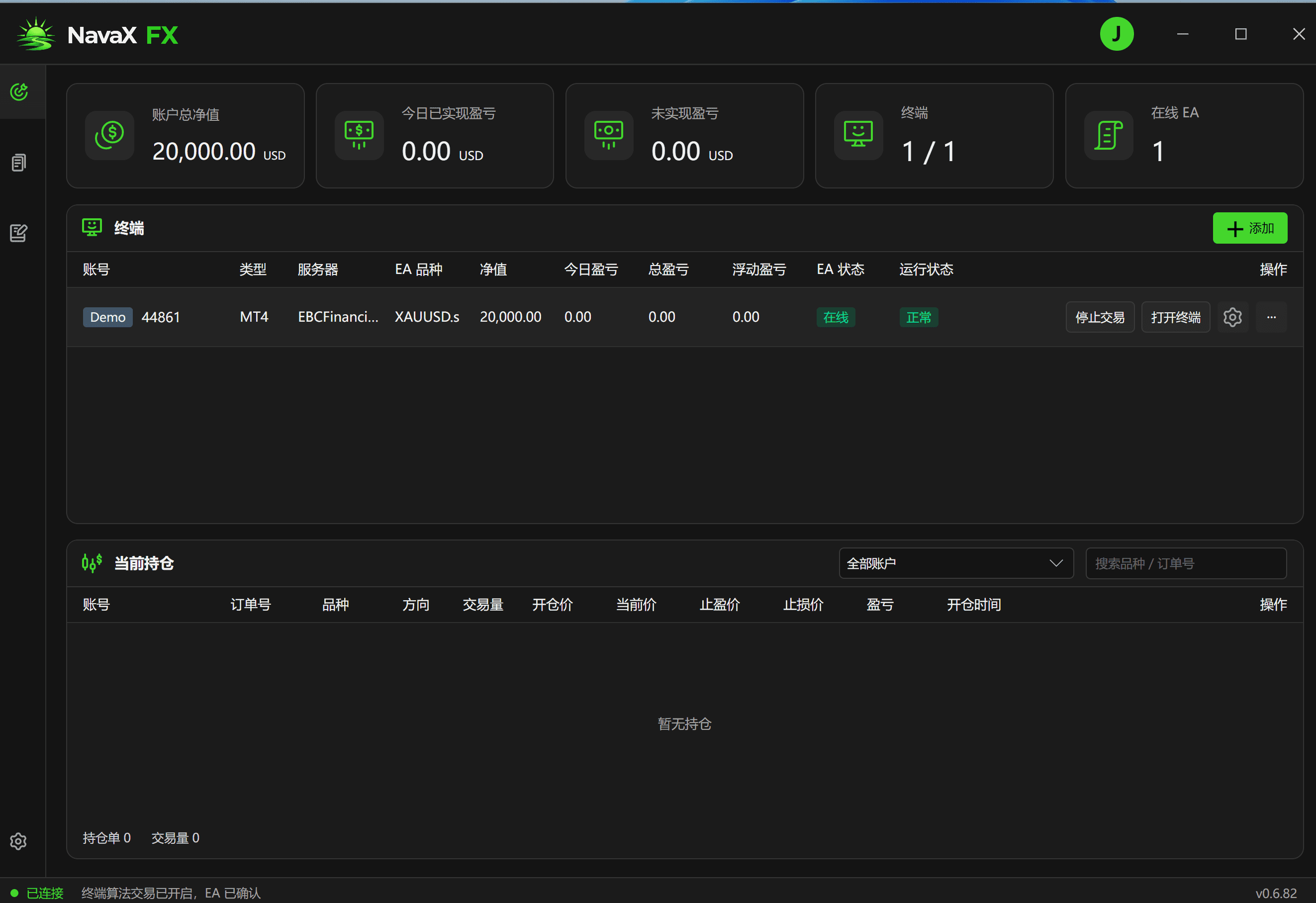
Wait for the status to refresh. The healthy example below shows the EA online, a normal operating status, and a bottom message confirming that terminal algorithmic trading is enabled and acknowledged by the EA. If a warning remains, investigate its specific message rather than repeatedly toggling controls.
Read the dashboard with confidence
The top cards summarize account and connection information. The Terminal table identifies individual accounts, and Open Positions displays positions that have not yet been closed. Use the trading terminal's reported data as the reference.
In Open Positions, Ticket identifies the order; Side indicates buy or sell; Volume is the position size in lots; Open price and Current price show entry and current pricing; Take profit and Stop loss show the position's exit levels; P/L displays its profit or loss.
Use All accounts to filter by account, or search by symbol or ticket. No open positions means the current list is empty. It does not, on its own, indicate a fault, nor should a successful connection necessarily open a position immediately.
Everyday checks and pausing
- Use Open Terminal to verify the account login, instrument, and positions. Open Folder helps locate that terminal's files; avoid modifying another instance by mistake.
- To revisit installation, open EA Setup from the … menu. The availability of EA authorization depends on the current account state; read the accompanying messages.
- To pause, verify the target account and use its trading control. Do not treat Disable Trading, closing the app, or removing a management record as closing existing positions. Verify existing orders separately in the trading terminal.
- Maintain network connectivity and keep the necessary applications running. Check EA connectivity, warnings, and positions periodically rather than relying on a single earlier Normal status.
Troubleshooting
The scan cannot find my MT4 / MT5 terminal.
Confirm that the intended terminal is installed and opens correctly, then rescan. Verify the installation and data folders; use Manual add if needed. Similar names may belong to different brokers or instances.
The scanned account or server displays “--”.
Those details depend on valid EA reports and may not be available yet. Verify the terminal paths first, then finish installation and connection checks. If details remain missing after connection, check the terminal's account login.
The symbol list is empty, or XAUUSD is missing.
Check that the terminal is logged in to the correct account and receiving broker quotes, then click Refresh. Look for the broker's complete gold-versus-US-dollar symbol, including suffixes. If it is not offered by that account, check with the broker; do not substitute silver or gold quoted in another currency.
Installation stays near 75% or waits for the EA connection.
Check whether Verify account connection is still waiting. Confirm that the matching MT4/MT5 instance is running, the account and server are correct, and the network is available. If it remains unchanged, record the app version, time, and exact message for support. Do not include trading passwords or other sign-in credentials in a support ticket.
The EA is online, but the operating status is Warning.
Online only describes EA connectivity. Read the bottom status message and review authorization, the manager trading switch, and terminal algorithmic trading permission independently. Disabled algorithmic trading is the example shown here, not the cause of every warning.
Everything looks normal, but there are no orders.
An empty Open Positions list is not proof of connection failure. Clear account and search filters, then check positions in the terminal. A ready execution chain does not mean the strategy must issue an opening instruction now. Do not place an unplanned live trade simply to test connectivity.
I switched NavaX accounts. What should I check?
EA authorization belongs to the signed-in NavaX account. Reauthorize under the new account's plan and recheck trading permissions. Switching the login does not close positions for you.
First-setup checklist
- The terminal account, MT4/MT5 type, and broker server are correct.
- The EA uses the complete gold-versus-US-dollar symbol.
- Installation and account connection verification are complete.
- Authorization was reviewed and granted under the intended NavaX account.
- The manager trading switch and terminal algorithmic trading permission match your intended setup.
- The EA is online, warnings have been investigated, and account data and positions can be checked.
You can now observe operation on the demo account. Connectivity, authorization, and risk controls do not guarantee profits, and demo results do not guarantee live results.